Owner / manager
Read the dashboard and tenancy indicators
Identify priorities and understand occupancy indicators without confusing them with budgets.
Where to go : Owner workspace → Home; Rental insights → View my insights
Before you start
Check the current organisation. Indicators rely on recorded properties, lease dates and statuses.
Available actions depend on your role, plan and the record’s current state. This manual explains how to use the product; legal topics are covered in the resource centre.
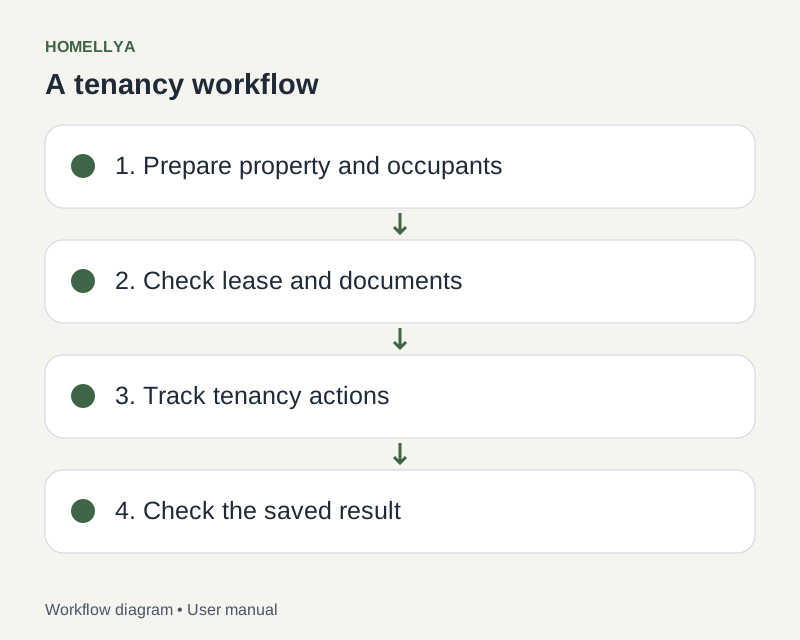
Step by step
Open Home to find highlighted actions and records. Check their details before considering an alert handled.
Open analyses from Rental insights to view lease counts, active tenants and leases expiring soon.
Read occupancy and vacancy indicators with their period: some cover twelve or twenty-four months. A loading placeholder is not a zero value.
If an indicator is unexpected, check relevant lease dates and statuses as well as property unavailability.
To analyse income and expenses, open Budgets. Occupancy rate does not replace tracking received payments and cash flow.
Check the result
You know which records need action and which data the indicators rely on.
If something goes wrong
If data does not load, check your connection and refresh. If it appears inconsistent, check the source records before editing values simply to adjust an indicator.