Owner / manager
Prepare, launch and track a signature request
Check the PDF, signers and placements before sending invitations.
Where to go : Lease → Contract; Documents / Signatures depending on context
Before you start
Have a readable PDF and all signers’ contact details. Access depends on permissions and plan.
Available actions depend on your role, plan and the record’s current state. This manual explains how to use the product; legal topics are covered in the resource centre.
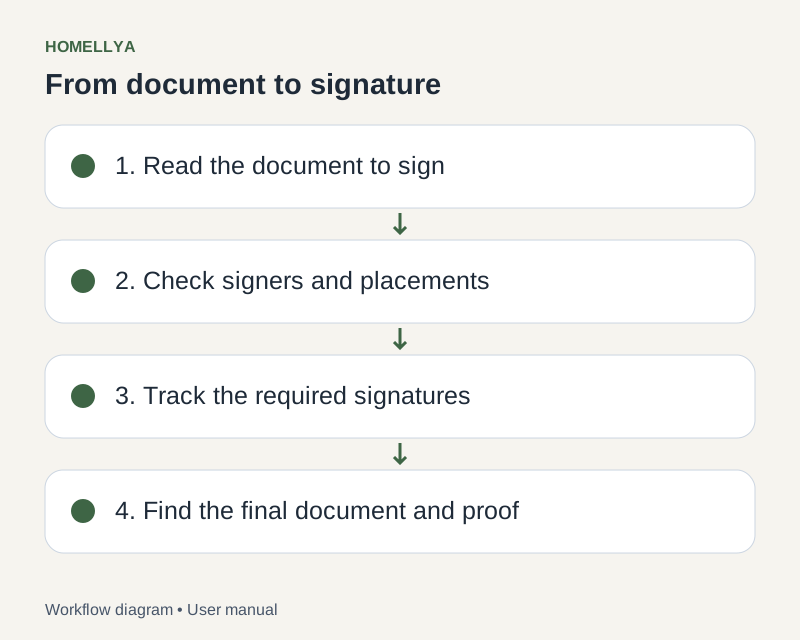
Step by step
Open the signing workflow from the relevant document and upload or select the intended PDF.
Add signers and check names, emails and any representation details. Choose sequential or parallel order where offered.
Place signature areas on the correct pages. Review every page and visually check placements, especially on rotated or cropped PDFs.
Review the summary and confirm launch. Once started, some information can no longer be edited.
In follow-up, check each signer. Use reminders or cancellation only when the workflow state allows them.
After finalisation, view the signed document and available proof. A sent request is not a completed signature.
Check the result
The follow-up distinguishes invitations, individual signatures and document finalisation.
If something goes wrong
If an invitation expires or an email is wrong, check available actions. Do not create another request before checking whether a signature was already recorded.