Tenant
Access your tenant space
Accept your invitation and find tenancies linked to your account.
Where to go : Received invitation; website → Sign in → tenant space
Before you start
Use the email address known to your owner or manager.
Available actions depend on your role, plan and the record’s current state. This manual explains how to use the product; legal topics are covered in the resource centre.
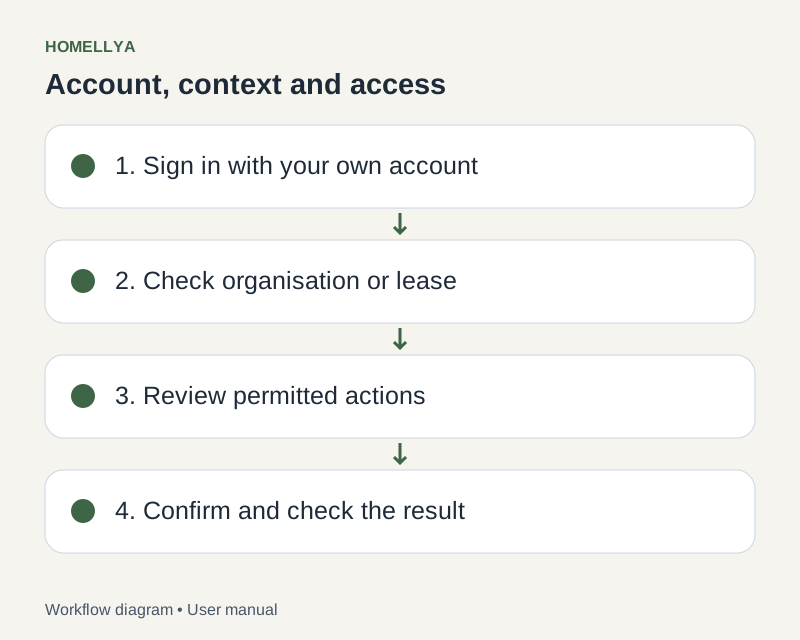
Step by step
Open the invitation and follow the offered flow to create an account or use an existing one.
Sign in with the same address. A different address may open an account without the expected links.
From the tenant home, review available tenancies and actions.
Open your lease and check the property and displayed details. If several leases are available, choose the one relevant to your task.
Check notifications and pending signing or inspection review requests. Available actions depend on the record and its progress.
Check the result
You can access only tenancies and documents your account is authorised to view.
If something goes wrong
Empty space? Ask the owner to check the tenant link and invited email. Do not create several accounts to look for a lease.