Owner / manager
Organise, upload and find documents
Use the correct record and check file visibility.
Where to go : Owner workspace → Documents; property and lease document sections
Before you start
Prepare files and identify their property, lease or other related record.
Available actions depend on your role, plan and the record’s current state. This manual explains how to use the product; legal topics are covered in the resource centre.
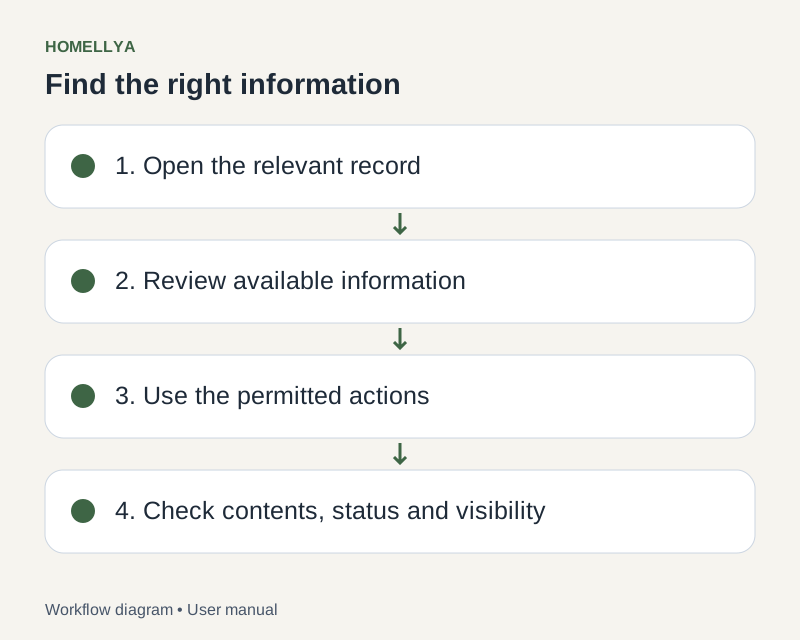
Step by step
Open Documents for a cross-record view, or the relevant record’s document section for a contextual upload.
Choose the file or files allowed by the form. Enter the requested category, label and association.
Wait for each upload result. In a batch, success for one file does not mean all files were uploaded.
Use search and filters to find the document. Open its preview or download it to check readability.
Before sharing, check recipients and the offered visibility settings. An internal document is not automatically accessible to tenants.
To correct metadata or delete a file, use permitted actions and read confirmations. Documents involved in signing may have restrictions.
Check the result
The document is discoverable in the correct context with the intended authorised access.
If something goes wrong
If downloading is refused, check context and permissions. If uploading fails, check type, size and quota; do not merely change the extension to bypass validation.